Mods
Browse Thunderstore, Nexus Mods, CurseForge, mod.io, Modrinth, and the Steam Workshop without leaving Vaerune.
Six sources in one place
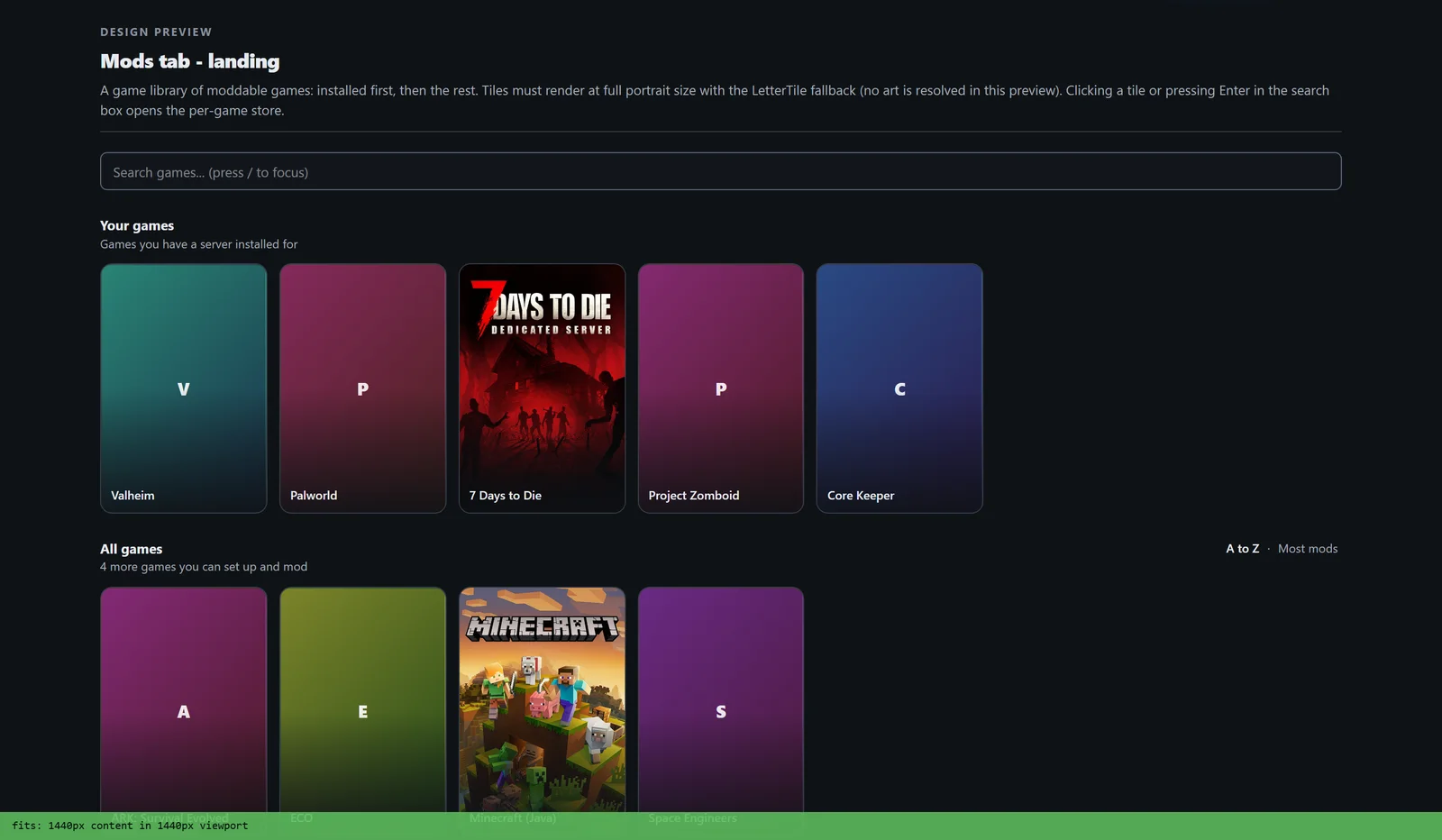
Every game's Mods tab consolidates six mod stores in one view:
- Thunderstore
- Nexus Mods
- CurseForge
- mod.io
- Modrinth
- Steam Workshop
Which sources appear depends on the game. If a game has no Thunderstore presence, that source is hidden. Vaerune only shows the sources that actually carry mods for the server you are managing.
Install a mod
Search or browse, then click Install. Vaerune downloads the mod, extracts it to the correct location for that game, and updates a manifest so it can track versions and remove the mod cleanly later. Installed mods appear in the same tab so you can see what is active at a glance.
If a mod would conflict with an active hook or a running server, Vaerune warns you before applying it. Mods that have been flagged for destabilizing servers show a warning badge and can be disabled in one click without manual file surgery.
Install from file
If you have a mod archive on disk (zip, rar, or the game's native package format), you can install it directly without going through a store. Drop the file onto the Mods tab or use the Install from file button. Vaerune extracts it the same way it would a store download.