Let friends join
How Vaerune handles connectivity, from local play to a tunnel that skips the router entirely.
Same network (LAN)
Players on the same network as the host can connect using the host machine's local IP address (for example 192.168.x.x) and the game's port. No configuration needed in Vaerune or your router.
Public IP and port forwarding
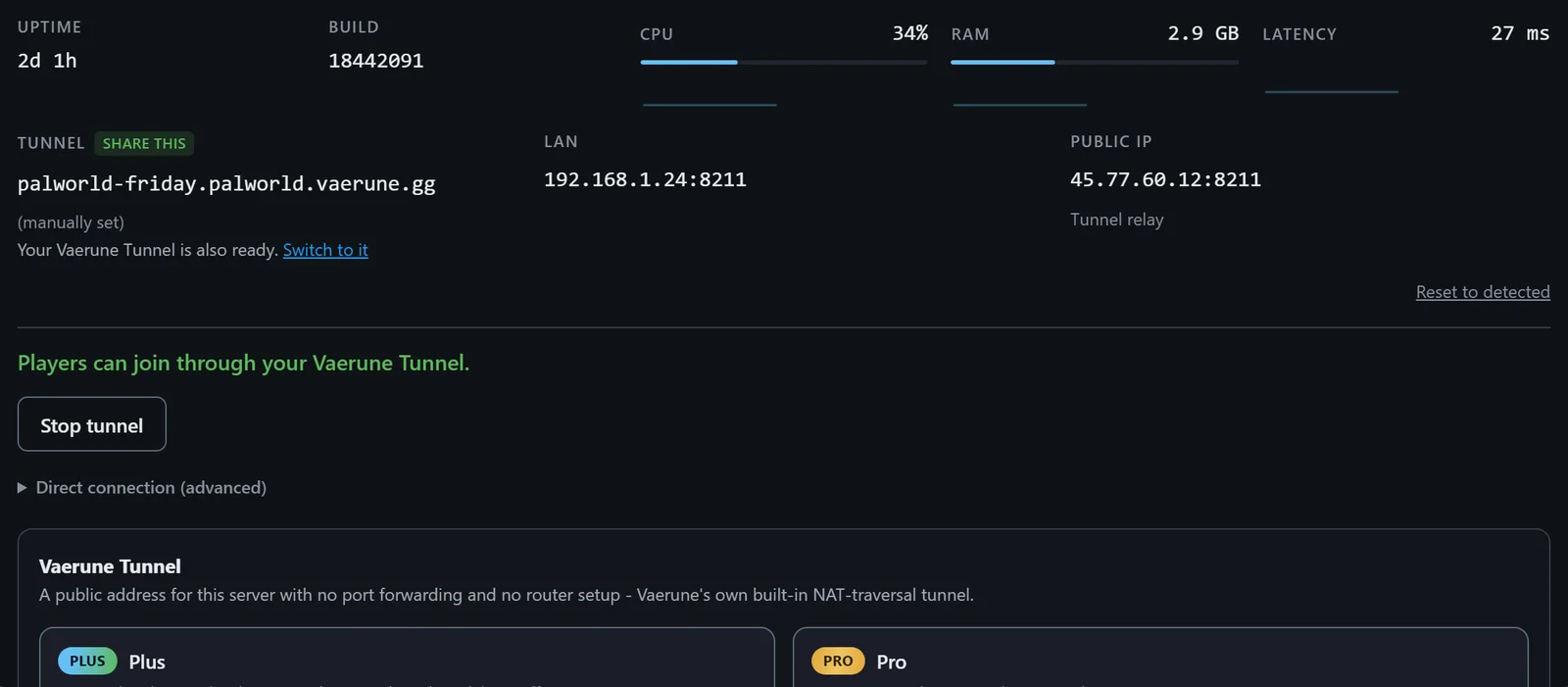
For players outside your network, Vaerune shows your public IP and the port the server is listening on. Friends connect to that address directly.
If your router supports UPnP, Vaerune tries to open the port automatically. Most home routers have UPnP on by default. If it works, the Connectivity panel shows a green confirmation. If not, you will need to add a manual port-forward rule in your router for the game's port, pointed at the machine running Vaerune.
CGNAT
Many ISPs, especially mobile and newer residential providers, share a single public IP across many customers (CGNAT). Inbound connections are blocked by the carrier before they reach your router, so port forwarding does nothing. If Vaerune's reachability check stays red even after port forwarding is configured, CGNAT is likely the cause. The Vaerune Tunnel solves this without any cooperation from your ISP.
Vaerune Tunnel
The Vaerune Tunnel gives your server a public address with no port forwarding and no router configuration. Enable it from the Connectivity tab. Vaerune opens an encrypted WireGuard connection to the nearest relay and players connect to a hostname under tunnel.vaerune.gg.
The tunnel is available on Plus and Pro. On Plus, Vaerune assigns a random two-word name (for example amber-forge.tunnel.vaerune.gg). On Pro you can set a custom name that stays fixed even if you restart the tunnel.
Launch reachability check
Every time a server starts, Vaerune runs a reachability check from outside your network. The health dot goes green only when an external probe gets a valid game reply. This is the same check that keeps the dot live while the server is running. If the dot does not turn green within a minute of a successful start, open the Connectivity tab and check which path the check failed on.