Start it and keep it online
What the controls do, what the health dot colors mean, and how Odin watches your servers automatically.
Start and stop
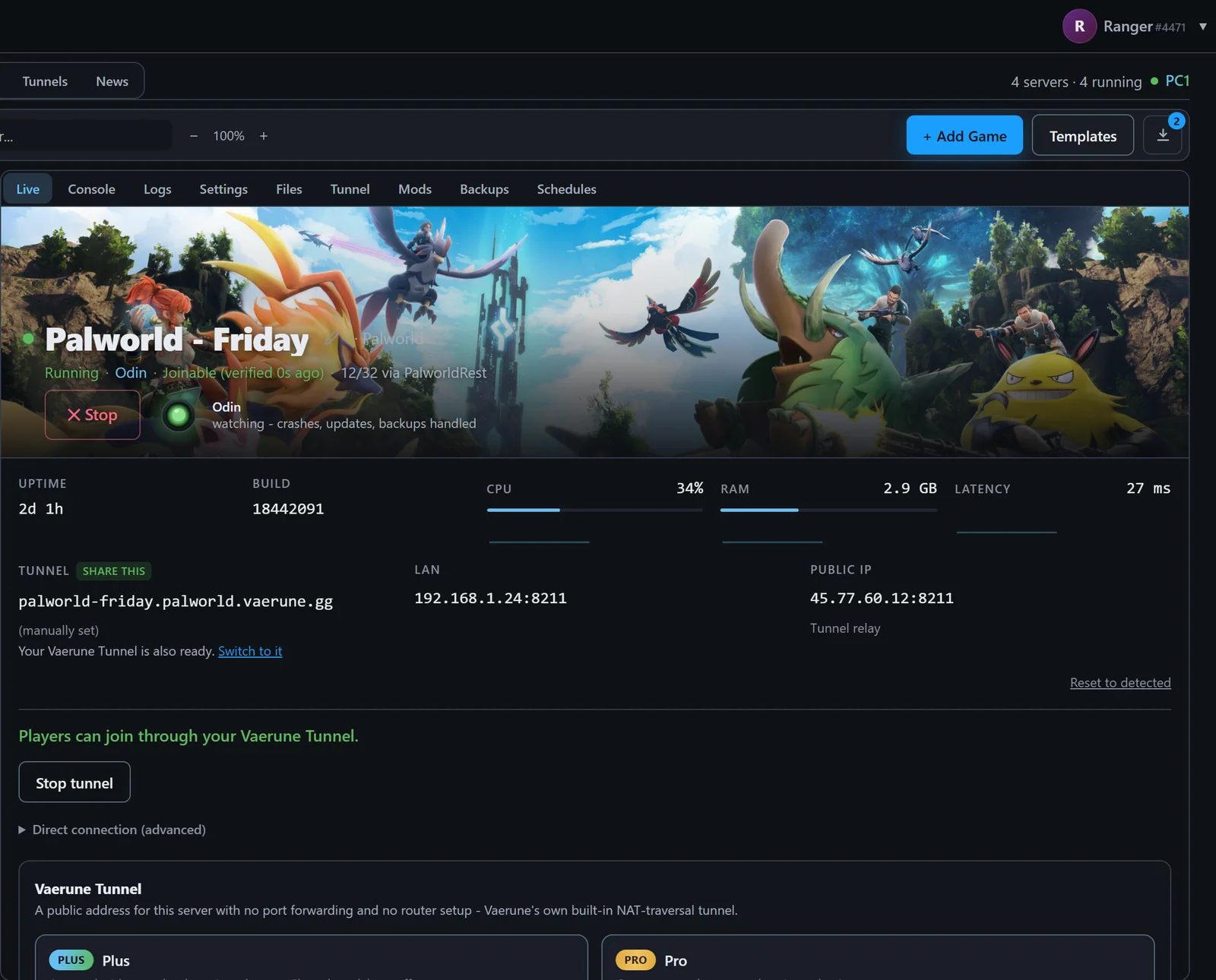
Each server in your library has a large Start / Stop button. Press Start and Vaerune launches the dedicated server process in the background. The status line below the button updates as the server moves through initializing, ready, and any intermediate states the game reports.
Stopping a server sends a graceful shutdown signal so the game can save state before exiting. Force-stop is available if the process does not respond.
Status and health dot
The health dot next to a server name tells you the real joinability state, not just whether the process is running. Vaerune probes the server from outside your network to confirm players can actually connect.
- Grey - the server is deliberately stopped, or has not been verified yet after its most recent start.
- Gold - degraded: the process is running but an update is available or reachability is uncertain.
- Green - confirmed joinable. Vaerune received a valid reply from a probe outside your network.
- Red - unreachable or crash-looped. The process may be running but outside players cannot reach it, or it is restarting repeatedly.
Odin auto-restart

Odin is Vaerune's built-in supervisor. With the Managed toggle on, Odin watches the server process and relaunches it after a crash or reboot. Crash-loop protection prevents Odin from hammering a broken install: if a server crashes more than a few times in quick succession, Odin pauses and marks it red so you can investigate before it tries again.
Remote Odin control from any browser (including your phone) is a Plus feature. The local watchdog on your machine is free.
Odin from your phone
On Plus and Pro, the Vaerune app for iPhone gives you the same Start / Stop controls and live status you see on the desktop, from anywhere. Sign in with the same account and your servers appear automatically. The app is rolling out on the App Store now.