Backups and schedules
Take a backup before anything risky. Schedule recurring backups and set update windows that warn players first.
Manual backups
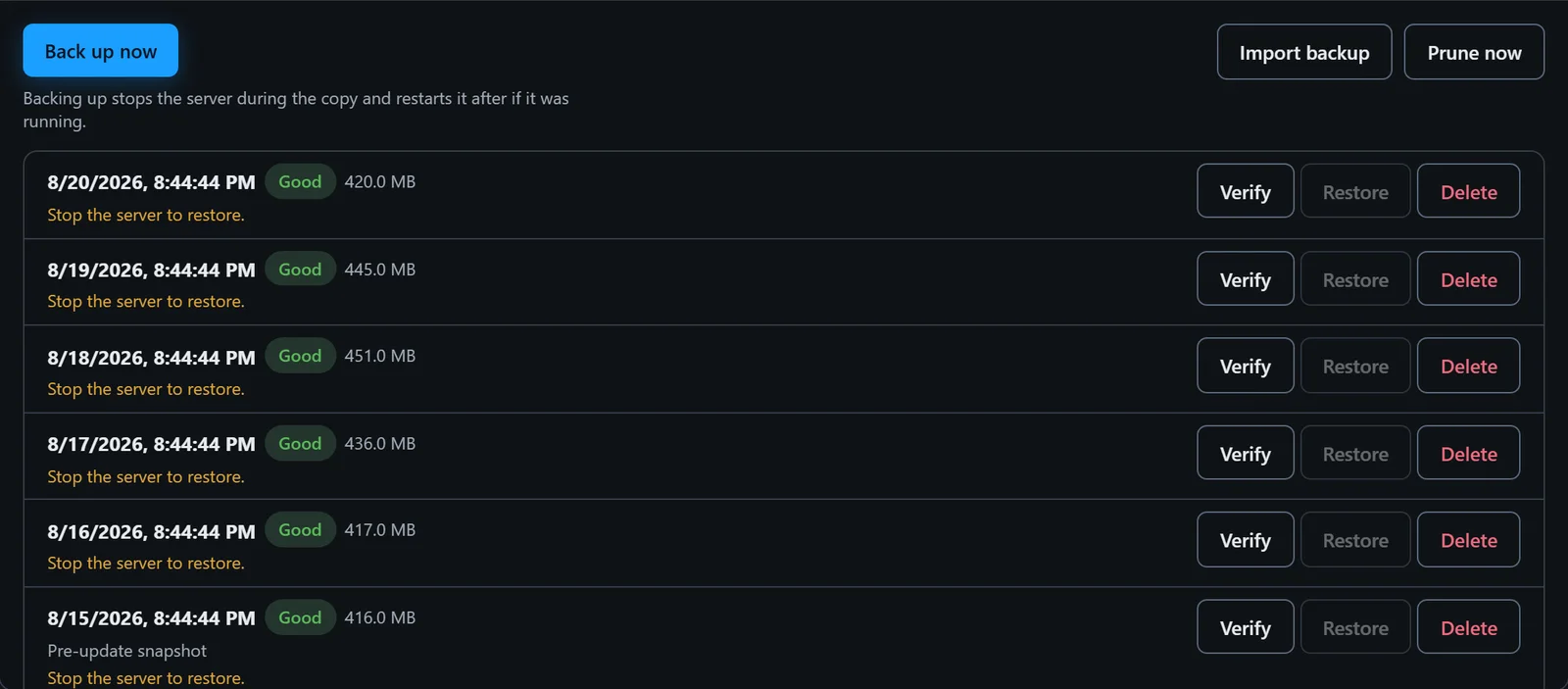
Take a manual backup any time from the Backups tab. Vaerune copies the server's world data and config files into a compressed archive and timestamps it. A backup before a major update or a config change takes a few seconds for most games and gives you a one-click restore if anything goes wrong.
Scheduled backups
Set a recurring backup schedule (daily, every 12 hours, or a custom interval) and Vaerune handles it automatically, even when you are not at your desk. Backups run while the server is live; Vaerune coordinates the snapshot so it does not require a stop.
Retention
Configure how many backups to keep. Once the limit is reached, Vaerune removes the oldest archive before creating a new one. The default is ten backups. Raising it keeps more history at the cost of disk space; lowering it keeps the backup folder manageable on machines with limited storage.
Cloud backups
Vaerune Plus and Pro keep a copy of every backup in the cloud, not just on the machine that made it. Plus includes 5 GB of cloud storage; Pro includes 25 GB. The Backups tab shows a quota meter for how much of your allowance is in use.
If your original PC is gone or you are setting up a new one, sign in and any server with a cloud copy shows up with a Restore from cloud option, even with no local backup on the box in front of you.
Your local backup always succeeds. When the cloud allowance is full, Vaerune prunes your oldest cloud copies to make room for the newest one. Only a single backup larger than your whole allowance skips the cloud; the local copy is unaffected. Free and Vaerune (one-time purchase) accounts keep backing up locally as always; cloud storage is a Plus and Pro benefit.
Rentals include cloud backups whatever your tier: renting a server adds 25 GB to your allowance, and the rental's scheduled backups land in the same account-wide list, so a rented world can be restored onto your own PC later.
Update windows and countdowns
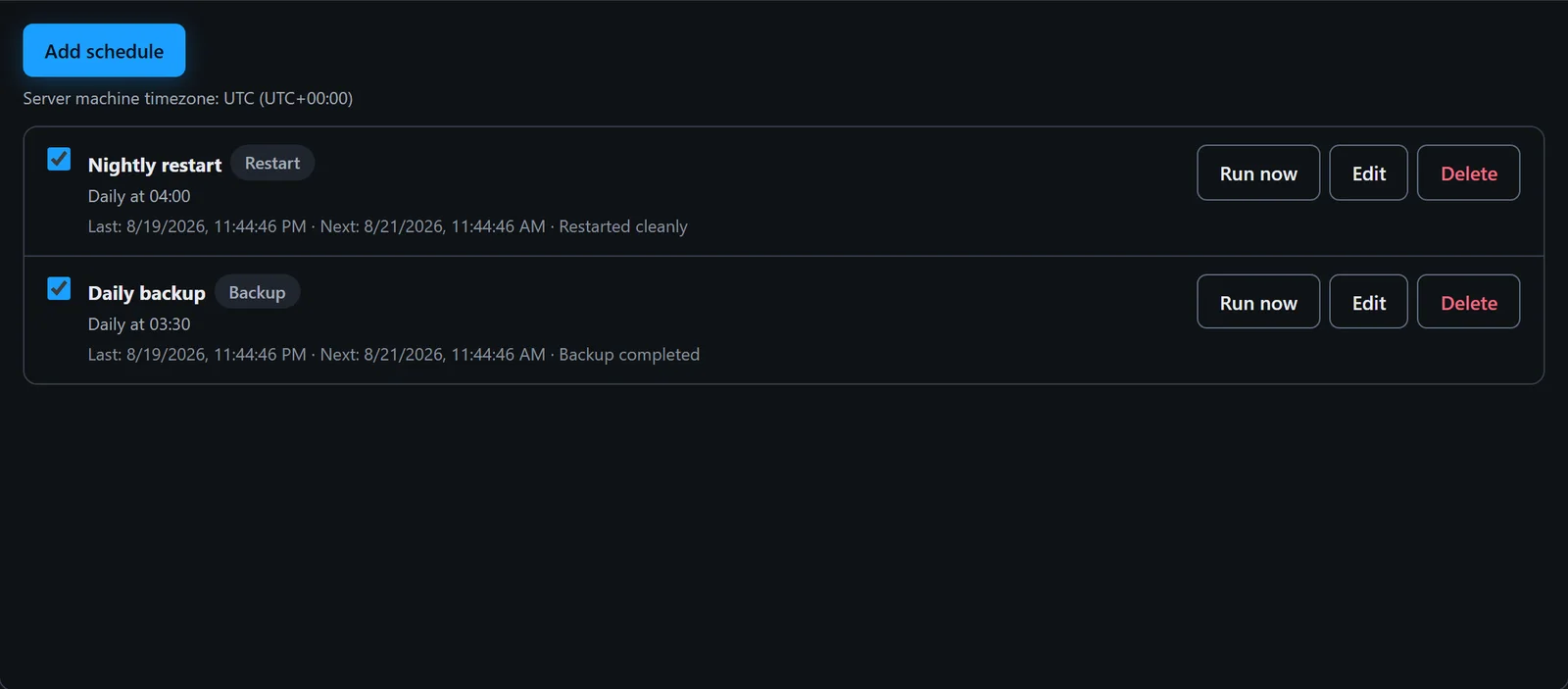
The Schedules tab lets you set a window for automatic game updates. When an update is detected, Vaerune sends a countdown warning in the game's chat (for games that support in-game messaging) before shutting down for the update. Set the countdown from 1 to 30 minutes. Players get a heads-up and time to reach a safe spot before the restart.
Update now
If you want to apply an available update immediately without waiting for the next scheduled window, use the Update now button. Vaerune triggers the same countdown-and-restart sequence, skipping only the schedule check.